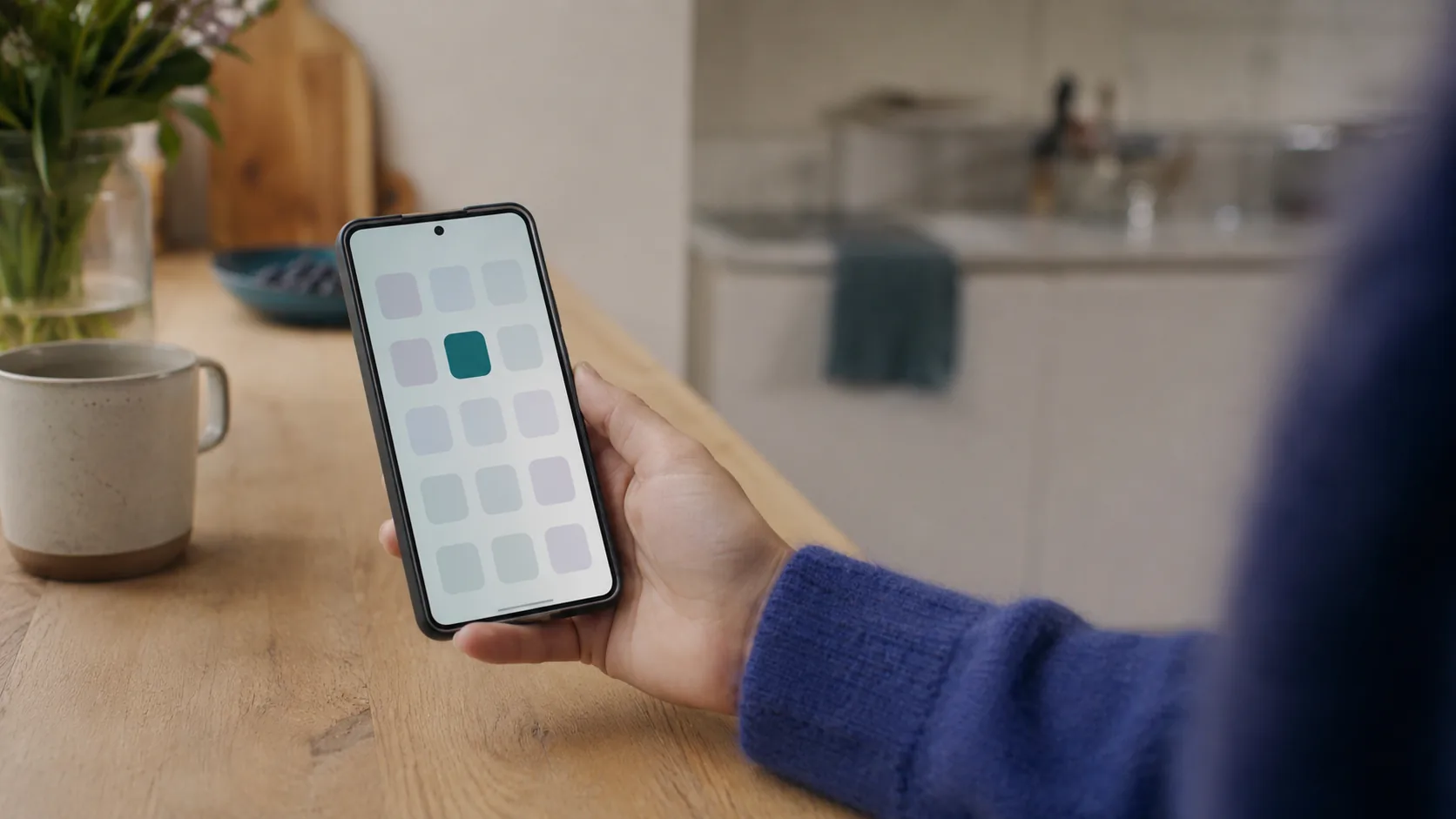
People say an app that is not in a store is not a proper app. Family Fair Play takes a different route, and for a household it is more of an advantage. It is a progressive web app: the same address you open in the browser on your computer can be pinned to your phone's home screen and runs as a standalone app.
You download nothing from a store, update nothing by hand and always have the latest version. The app also takes up only a tiny amount of space on your phone. The one condition is that you add it to your home screen once.
iPhone and iPad
On iPhone, adding to the home screen works most reliably in Safari.
- Open app.familyfairplay.com in Safari and sign in.
- Tap the Share icon. It is the square with an arrow pointing up in the bottom bar.
- Choose Add to Home Screen. If you cannot see it, scroll further down the list.
- Confirm with Add. The Family Fair Play icon appears on your home screen.
From now on, open the app from the icon. It launches full screen, without the browser bar.
Android
On Android it is even simpler, and the browser usually offers it on its own.
- Open app.familyfairplay.com in Chrome and sign in.
- If an Install app prompt appears, tap it and confirm.
- If it does not, tap the three dots in the top right and choose Install app or Add to Home screen.
- The icon is added to your home screen and your app list.
If you are not sure, the app helps you itself. From your third visit it offers, in a bar at the bottom, a guide for your exact phone and browser, and you can find the same guide any time in Settings under App on your Home Screen.
On iPhone, notifications only work from the home screen
This is the most common surprise. On iPhone, web notifications work from iOS 16.4 onwards, but only when the app has been added to the home screen and you open it from the icon, not from Safari. If notifications are not arriving, the reason is almost always that the app is not on the home screen yet. Android has no such restriction.
Push notifications are part of Premium. You switch them on in the app's Settings and receive them for task reminders and approval requests. In the free version the switch is visible but locked.
What the home screen icon gives you
The icon is not just cosmetic. The app starts faster and full screen, so it feels like any other app on your phone. On supported devices, the icon also shows how many tasks are waiting for your approval.
If you keep a tablet in the kitchen for the kids, add the app to its home screen too. Turn on kiosk mode, which hides navigation, and the kids can tick off their tasks without getting into the settings.
Adding the app to the home screen is the first step we recommend on every phone in the family. After that, all that is left is to sign in your household members and share out the tasks.
Add the app to your home screen
Sign in in your phone's browser and add the app to your home screen using the steps above. It takes a few seconds.
Open Family Fair Play